🎃 Halloween Sale — Scary Good Deals, Up to 20% OFF! Don't be spooked by these prices — grab them before they disappear at midnight.
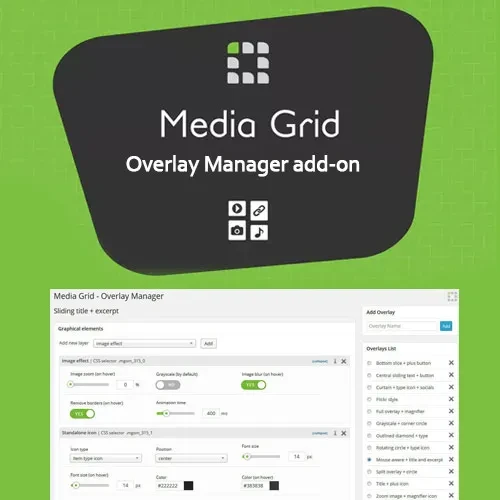
Media Grid – Overlay Manager Add-on is an extension for the Media Grid WordPress plugin that provides additional control over the overlays displayed when visitors interact with grid items. It helps website owners and designers customize the appearance, content, and animation effects of overlays to create more engaging media presentations. With its visual editing tools, customizable backgrounds, hover transitions, and support for text, icons, buttons, and metadata, Overlay Manager can help transform standard media grids into interactive content displays. It is suitable for creative portfolios, business websites, photography galleries, agency projects, and compatible eCommerce websites.
Media Grid – Overlay Manager Add-on – Custom Hover Effects for WordPress
Media Grid – Overlay Manager Add-on is an extension for the Media Grid WordPress plugin that provides additional control over the overlays displayed when visitors interact with grid items. It helps website owners and designers customize the appearance, content, and animation effects of overlays to create more engaging media presentations.
With its visual editing tools, customizable backgrounds, hover transitions, and support for text, icons, buttons, and metadata, Overlay Manager can help transform standard media grids into interactive content displays. It is suitable for creative portfolios, business websites, photography galleries, agency projects, and compatible eCommerce websites.
As an add-on, it requires the Media Grid core plugin to be installed and activated.
Custom Overlay Creation: Create multiple overlay designs using the available visual editing tools.
Drag-and-Drop Editor: Arrange supported overlay elements through a visual customization interface.
Media Grid Item Support: Apply overlays to supported grid items, including images, videos, and galleries.
Text and Icon Elements: Add titles, descriptions, icons, and other supported content to overlays.
Buttons and Links: Include call-to-action buttons and links where supported by the editor.
Hover Animations: Choose from available animation and transition effects to enhance user interaction.
Color and Background Controls: Customize overlay colors, backgrounds, and transparency settings.
Real-Time Preview: Preview overlay designs before applying them to published content, where supported.
Individual Overlay Assignment: Configure different overlay designs for specific grids or items.
Responsive Presentation: Configure overlays for different screen sizes and interaction methods, subject to the add-on version and core plugin compatibility.
Customize the overlays displayed over media grid items instead of relying solely on predefined presentation styles. The available design controls help you create overlays that align with your website's branding and visual identity.
You can use different overlay designs for portfolios, product showcases, image galleries, and other supported content collections.
Use the visual editor to arrange supported overlay elements and configure their presentation. This workflow can simplify common design tasks and reduce the need to manually write CSS or HTML for every overlay.
The exact editing options depend on the installed version of the add-on and the Media Grid core plugin.
Add relevant information to media items through supported overlay elements, such as:
Titles and headings.
Short descriptions.
Icons and visual indicators.
Custom metadata.
Call-to-action buttons and links, where supported.
These elements can help visitors understand what a media item represents and identify the next action to take.
Enhance grid interactions with available hover animations and transition effects. Animated overlays can create a more dynamic presentation when visitors move their pointer over supported grid items.
Choose effects that complement your website design without distracting visitors from the content. For touchscreens, test how overlays are activated because hover interactions may behave differently on mobile devices.
Adjust overlay colors, backgrounds, and transparency to create a suitable balance between visual impact and readability. These settings can help maintain contrast between overlay text and the underlying images or videos.
Consistent styling can also help align media grids with your website's existing branding.
Apply different overlay designs to supported grids or individual items according to your presentation requirements. For example, a portfolio grid might use descriptive project overlays, while a product showcase might use overlays that highlight product details or calls to action.
This flexibility helps create more varied media displays within the same website.
Where the installed version supports preview functionality, review your overlay designs before applying them to published content. Previewing can help identify issues with text positioning, contrast, animation, and element spacing before visitors see the finished result.
Configure and test overlay designs for desktop, tablet, and mobile viewing. Because touch devices do not use conventional hover interactions in the same way as desktop computers, check how overlay content is accessed on smaller screens.
The final behavior depends on the add-on version, Media Grid configuration, theme, and device.
Get Support
Please Sign In to contact our support.