🎃 Halloween Sale — Scary Good Deals, Up to 20% OFF! Don't be spooked by these prices — grab them before they disappear at midnight.
GravityView – Gravity Forms Calendar is a WordPress calendar extension designed to transform Gravity Forms submissions into organized, interactive calendar displays. It helps website owners present events, appointments, deadlines, bookings, and other date-based information using calendar views that make scheduled activities easier to explore. By connecting form submissions with calendar-style layouts, this extension can help businesses, educational institutions, event organizers, and WordPress developers manage and display time-sensitive information in a more structured way. Depending on the available configuration, calendar entries can include details such as event titles, start and end dates, descriptions, locations, and links.
GravityView – Gravity Forms Calendar – WordPress Calendar Extension (GPL)
GravityView – Gravity Forms Calendar is a WordPress calendar extension designed to transform Gravity Forms submissions into organized, interactive calendar displays. It helps website owners present events, appointments, deadlines, bookings, and other date-based information using calendar views that make scheduled activities easier to explore.
By connecting form submissions with calendar-style layouts, this extension can help businesses, educational institutions, event organizers, and WordPress developers manage and display time-sensitive information in a more structured way. Depending on the available configuration, calendar entries can include details such as event titles, start and end dates, descriptions, locations, and links.
With support for calendar navigation, entry filtering, and integration with the Gravity Forms and GravityView ecosystem, this extension is useful for websites that collect scheduling information through online forms and want to display those submissions in a calendar format.
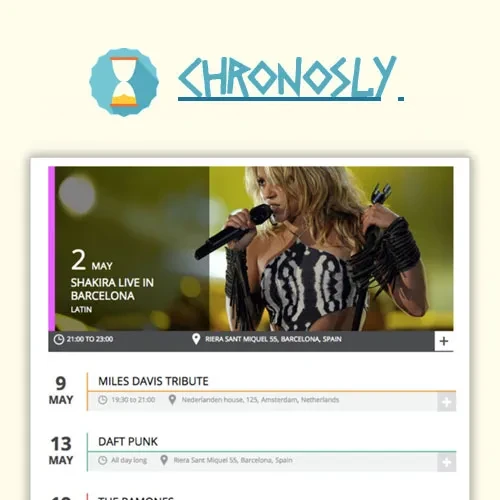
Gravity Forms Calendar Display – Present form submissions as calendar entries using supported daily, weekly, and monthly views.
Custom Event Field Mapping – Connect form fields to calendar information such as titles, dates, descriptions, and locations.
Front-End Search and Filtering – Help visitors find relevant entries using available search and filtering options.
Entry Details Display – Allow visitors to access additional information through supported entry views, modals, or individual entry pages.
Shortcode and Embedding Support – Display calendar content on suitable WordPress pages and posts using supported embedding methods.
Date and Time Organization – Arrange submitted information according to configured date and time fields.
Recurring Event Workflows – Organize recurring activities through suitable form structures or related workflows, depending on the setup.
Entry Visibility Controls – Use supported GravityView permissions and approval settings to control which submissions are displayed.
WordPress Theme Compatibility – Integrate calendar displays into WordPress layouts, subject to theme and plugin compatibility.
Page Builder Integration – Place calendar content in supported page-building environments using available WordPress embedding options.
Form-Based Calendar Management – Use submitted Gravity Forms data as the source for calendar entries.
Flexible Scheduling Applications – Adapt calendar displays for events, class schedules, appointments, project timelines, and other date-based information.
GravityView – Gravity Forms Calendar is designed to connect form data with a calendar-style presentation. Instead of leaving submitted dates and event information in a list of form entries, website administrators can display relevant information in a visual calendar format.
This approach can be useful for websites that collect event registrations, appointment requests, scheduled activities, deadlines, or other information containing date fields.
Different projects require different ways to review scheduled information. Calendar views can help visitors focus on a particular day, understand activities throughout a week, or review a broader monthly schedule.
The available calendar views and their behavior depend on the installed extension version and configuration.
Calendar entries often require several pieces of information to be displayed together. Supported field-mapping options can help administrators connect Gravity Forms fields with the information shown in the calendar.
Depending on the configuration, these fields may include:
Event or appointment title
Start date and time
End date and time
Event description
Venue or location
Related links or additional details
Correct field mapping helps ensure that the calendar presents information from the intended form fields.
When a website contains many calendar entries, visitors may need a convenient way to locate particular activities. Supported front-end search and filtering options can help users narrow the displayed information according to available criteria.
Depending on the configured fields and features, filtering may include keywords, categories, dates, or other relevant information.
A calendar entry may contain more information than can comfortably fit inside a calendar cell. Supported entry-detail displays can provide visitors with a way to access additional information without requiring every detail to appear in the main calendar.
Depending on the setup, this may involve a popup, modal, or individual entry page.
Not every form submission should necessarily appear on a public calendar. Website administrators may need to review submissions, approve entries, or limit visibility according to their website's requirements.
When used with compatible GravityView functionality, available approval, access, and visibility settings can help manage which entries are displayed. Actual access control depends on the configured permissions and the behavior of the installed components.
A calendar is most useful when visitors can find it on the appropriate website page. Supported shortcodes, blocks, or other embedding methods can help place calendar displays within relevant WordPress content.
For example, a calendar could be published on an events page, an appointment information page, a training schedule, or an internal project dashboard.
Compatibility with individual themes and page builders should be tested in the target website environment.
Get Support
Please Sign In to contact our support.