Exclusive Coupon — Use Code SAVE10 for Instant Savings! Apply at checkout for your special discount. Limited uses — grab it while you can.
Allow customers to send different products from the same WooCommerce order to separate destinations with WooCommerce Shipping Multiple Addresses. The plugin extends the standard checkout process so shoppers can assign individual products or quantities to different shipping addresses instead of creating separate orders. It is especially useful for gift purchases, family shopping, corporate orders, and other situations where products need to be delivered to multiple recipients. The GPL-licensed package is available from 5ivecode.com with lifetime free updates and limited email support.
WooCommerce Shipping Multiple Addresses – Multi-Address Checkout Plugin
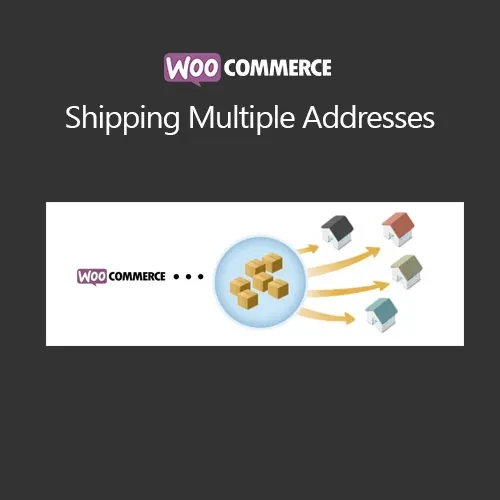
Allow customers to send different products from the same WooCommerce order to separate destinations with WooCommerce Shipping Multiple Addresses. The plugin extends the standard checkout process so shoppers can assign individual products or quantities to different shipping addresses instead of creating separate orders.
It is especially useful for gift purchases, family shopping, corporate orders, and other situations where products need to be delivered to multiple recipients.
The GPL-licensed package is available from 5ivecode.com with lifetime free updates and limited email support.
Ship products from a single order to multiple shipping addresses
Let customers assign cart items to different recipients
Support simple and variable WooCommerce products
Work with available WooCommerce shipping methods
Save multiple shipping addresses for future purchases
Suitable for gift orders, family purchases, and bulk deliveries
Responsive checkout experience for mobile and desktop users
GPL licensing for personal and client projects
Lifetime free updates included with the package
Standard WooCommerce checkout is generally structured around shipping an order to a single destination. This can become inconvenient when a customer wants products from the same shopping cart delivered to several locations.
WooCommerce Shipping Multiple Addresses expands the checkout workflow by allowing customers to divide products between multiple shipping destinations.
For example, a customer purchasing several gifts can assign different products to different recipients. A business placing a larger order can also distribute products to separate locations without having to manually create an individual order for every destination.
Customers can manage their shipping addresses and assign the relevant products during the checkout process. The plugin supports both simple and variable products, making it suitable for a range of WooCommerce product catalogs.
The responsive checkout design also provides a more convenient experience for customers shopping from mobile devices.
Feature | WooCommerce Shipping Multiple Addresses | Standard WooCommerce Checkout |
|---|---|---|
Multiple Shipping Addresses | ✔ Supported within the order workflow | Typically one shipping destination per order |
Product Assignment | ✔ Assign products to different addresses | Not available in the standard workflow |
Gift Orders | ✔ Suitable for multiple recipients | May require separate orders |
Saved Addresses | ✔ Supports multiple saved addresses | Standard address management |
Simple Products | ✔ Supported | ✔ Supported |
Variable Products | ✔ Supported | ✔ Supported |
Shipping Methods | ✔ Designed to work with WooCommerce shipping methods | ✔ Standard WooCommerce methods |
Responsive Checkout | ✔ Designed for responsive use | Depends on the theme and checkout configuration |
GPL Licensing | ✔ GPL-distributed package | Depends on the specific extension |
Download the WooCommerce Shipping Multiple Addresses GPL Plugin from 5ivecode.com.
Log in to your WordPress administration dashboard.
Go to Plugins → Add New → Upload Plugin.
Select the plugin ZIP file.
Click Install Now.
Activate the plugin after installation.
Open the available WooCommerce shipping or plugin settings.
Configure the multi-address shipping options according to your store requirements.
Test the checkout process by adding multiple products and assigning them to different shipping destinations.
Get Support
Please Sign In to contact our support.