Exclusive Coupon — Use Code SAVE10 for Instant Savings! Apply at checkout for your special discount. Limited uses — grab it while you can.
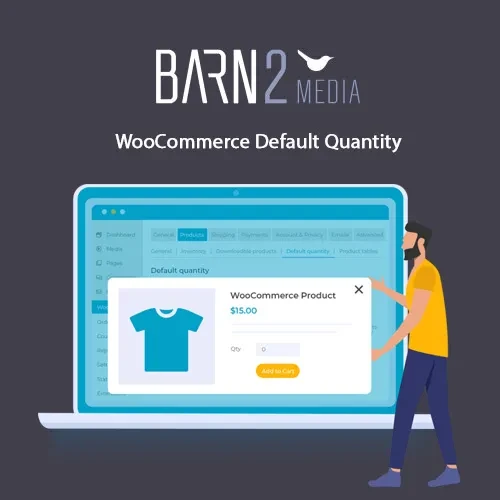
WooCommerce Default Quantity gives store owners greater control over the starting quantity shown for products. Instead of automatically displaying 1 as the initial quantity, you can configure a preferred quantity for your entire store, specific product categories, or individual products. This is especially useful for businesses that sell products in packs, bulk quantities, wholesale units, or items that customers commonly purchase in multiples. Setting a more appropriate starting quantity can make ordering faster and encourage customers to purchase the quantities that best match your business model.
WooCommerce Default Quantity (GPL Plugin)
WooCommerce Default Quantity gives store owners greater control over the starting quantity shown for products. Instead of automatically displaying 1 as the initial quantity, you can configure a preferred quantity for your entire store, specific product categories, or individual products.
This is especially useful for businesses that sell products in packs, bulk quantities, wholesale units, or items that customers commonly purchase in multiples. Setting a more appropriate starting quantity can make ordering faster and encourage customers to purchase the quantities that best match your business model.
The plugin is distributed under the GPL (General Public License) and can be used across multiple websites according to GPL terms. The package from 5ivecode.com includes lifetime free updates and limited email support.
✅ Set a default quantity across your entire WooCommerce catalog
✅ Assign different starting quantities to individual products
✅ Configure quantity defaults for specific product categories
✅ Encourage customers to order larger quantities when appropriate
✅ Compatible with both simple and variable WooCommerce products
✅ Lightweight functionality designed to minimize unnecessary overhead
✅ Easy configuration without requiring custom coding
✅ GPL licensed for use across unlimited websites
WooCommerce normally displays 1 as the initial product quantity. While this works for many stores, it may not be ideal for businesses where products are commonly purchased in larger quantities.
For example, a wholesale store may sell products in batches, while a retailer could sell items in packs or bundles. WooCommerce Default Quantity lets you adjust the starting quantity so customers can begin their purchase with a more suitable value.
You can configure quantity defaults at different levels, depending on your store's requirements. A global value can be applied throughout the catalog, while product or category-specific settings can provide more precise control.
This flexibility can help simplify the ordering process, reduce repetitive quantity adjustments, and create a shopping experience that better matches the way your customers typically purchase products.
The plugin is designed to be simple to configure and does not require you to write custom code. With 5ivecode.com, the package includes lifetime free updates and limited email support.
Feature | Default Quantity Addon | Standard WooCommerce |
|---|---|---|
Store-Wide Default Quantity | ✔ Supported | ✘ Not provided by default |
Product-Specific Quantity | ✔ Supported | ✘ Requires customization |
Category-Based Quantity | ✔ Supported | ✘ Not available by default |
Bulk Ordering Support | ✔ Easier to configure | ✘ Requires manual quantity changes |
Multi-Site GPL Usage | ✔ Supported under GPL terms | ✘ Depends on the solution |
Lifetime Free Updates | ✔ Included with this package | ✘ Not a standard WooCommerce feature |
Download the WooCommerce Default Quantity ZIP package from 5ivecode.com.
Log in to your WordPress administration dashboard.
Navigate to Plugins → Add New → Upload Plugin.
Upload the downloaded ZIP file.
Click Install Now and activate the plugin.
Open the plugin's quantity configuration settings.
Define your preferred global, category-level, or product-level quantities.
Save the settings.
Visit your product pages to verify that the configured default quantities are displayed correctly.
Get Support
Please Sign In to contact our support.