🎃 Halloween Sale — Scary Good Deals, Up to 20% OFF! Don't be spooked by these prices — grab them before they disappear at midnight.
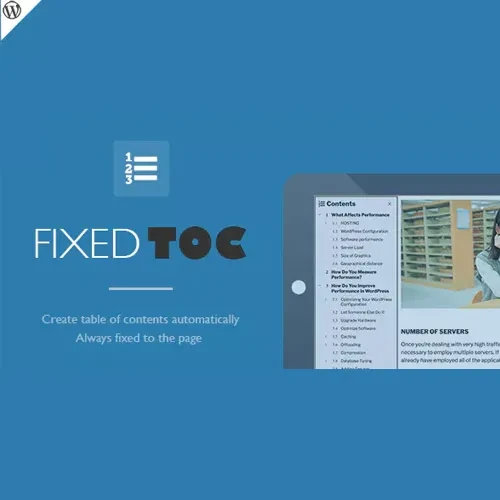
Fixed TOC – Table of Contents for WordPress is a content navigation plugin that helps organize long WordPress posts and pages into an easy-to-use table of contents. By detecting headings and arranging them into a structured navigation list, it allows visitors to find specific sections quickly without scrolling through an entire page. Whether you publish blog articles, tutorials, documentation, educational resources, or detailed website content, Fixed TOC can improve content accessibility and make long pages easier to explore. Its heading selection, customizable styling, and fixed table of contents functionality help create a more organized reading experience across different devices.
Fixed TOC – Table of Contents for WordPress
Fixed TOC – Table of Contents for WordPress is a content navigation plugin that helps organize long WordPress posts and pages into an easy-to-use table of contents. By detecting headings and arranging them into a structured navigation list, it allows visitors to find specific sections quickly without scrolling through an entire page.
Whether you publish blog articles, tutorials, documentation, educational resources, or detailed website content, Fixed TOC can improve content accessibility and make long pages easier to explore. Its heading selection, customizable styling, and fixed table of contents functionality help create a more organized reading experience across different devices.
WordPress Table of Contents – Add structured navigation to lengthy posts and pages.
Automatic TOC Generation – Generate a table of contents from supported content headings.
Heading Detection – Identify headings and arrange them into a logical navigation hierarchy.
Fixed Table of Contents – Keep navigation conveniently accessible while visitors browse supported page layouts.
Content Navigation – Help readers jump directly to relevant sections of an article.
Custom TOC Styling – Adjust the appearance of the table of contents to complement your website design.
Heading Level Selection – Choose which heading levels to include in the navigation structure.
Smooth Anchor Navigation – Enable convenient movement to sections through heading anchor links.
Long-Form Content Support – Make lengthy blog posts, guides, tutorials, and reference pages easier to navigate.
Responsive TOC Design – Support a more convenient navigation experience across desktop, tablet, and mobile screens.
Organizing headings manually can take additional time, particularly when publishing detailed articles. Automatic table of contents generation helps create a structured navigation list from eligible headings, reducing repetitive work and helping maintain consistency across long-form content.
A well-organized heading structure helps readers understand how different sections relate to one another. With heading detection and level selection, you can build a more meaningful navigation outline that reflects the organization of your content.
A fixed table of contents can help visitors access section links more conveniently as they read. This is particularly useful for lengthy tutorials, comprehensive guides, technical documentation, and articles containing multiple topics.
Adapt the table of contents styling to suit your website's layout and visual identity. A consistent design can help the navigation element blend naturally with your WordPress theme and surrounding content.
Responsive design helps make content navigation more practical on different screen sizes. Readers can use the table of contents to locate relevant information without needing to browse every section manually.
Fixed TOC can be useful for:
WordPress bloggers publishing detailed articles.
Educational websites offering lessons and tutorials.
Businesses creating guides and informational resources.
Technical websites maintaining documentation.
Publishers managing long-form editorial content.
Website owners who want clearer page navigation.
Sign in to your WordPress administration dashboard.
Navigate to the plugin installation area or upload the plugin package if you have a compatible installation file.
Install and activate the plugin according to its installation method.
Review the available settings for heading levels, table of contents styling, and navigation behavior.
Configure the options to suit your website and test the table of contents on a suitable post or page.
The exact installation and configuration steps may vary depending on the plugin package and version.
Get Support
Please Sign In to contact our support.