🎃 Halloween Sale — Scary Good Deals, Up to 20% OFF! Don't be spooked by these prices — grab them before they disappear at midnight.
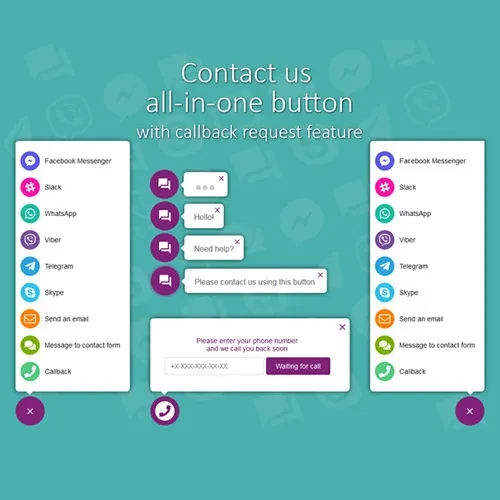
All in One Support Button is a WordPress customer communication plugin that brings multiple contact and support options together in one convenient, customizable button. It helps website visitors connect with businesses through supported messaging apps, live chat, and callback request forms without having to search through different contact pages. Whether you operate a business website, online store, service-based company, or customer support portal, All in One Support Button can make it easier for visitors to find a suitable way to contact your team.
All in One Support Button – WordPress Customer Communication Plugin
All in One Support Button is a WordPress customer communication plugin that brings multiple contact and support options together in one convenient, customizable button. It helps website visitors connect with businesses through supported messaging apps, live chat, and callback request forms without having to search through different contact pages.
Whether you operate a business website, online store, service-based company, or customer support portal, All in One Support Button can make it easier for visitors to find a suitable way to contact your team.
Multi-Channel Support Button – Combine multiple customer contact options into a single, accessible interface.
WhatsApp Integration – Allow visitors to contact your business through WhatsApp.
Facebook Messenger Integration – Provide a convenient way for customers to start conversations through Messenger.
Telegram Integration – Offer Telegram as another supported communication channel.
Live Chat Support – Give website visitors access to live chat where the feature and service are configured.
Callback Request Forms – Allow customers to submit requests for a return call.
Multiple Contact Channels – Present different communication methods so visitors can choose their preferred option.
Customizable Button Design – Adjust supported appearance settings to better match your website's design.
Mobile-Friendly Interface – Help visitors access contact options on smartphones and other screen sizes.
WordPress Integration – Add customer communication functionality to your WordPress website.
Visitors may prefer different ways to contact a business. All in One Support Button helps organize available communication channels within one interface, making contact options easier to discover across your website.
With supported integrations such as WhatsApp, Facebook Messenger, and Telegram, you can provide familiar messaging options for customer inquiries. Availability and setup requirements may vary depending on the plugin version and each platform's configuration.
Some customers prefer a direct conversation, while others would rather request a callback. The plugin's described live chat and callback features can help provide alternative contact methods for visitors who need assistance.
A consistent website design helps create a more cohesive user experience. Customization options can help you adapt the support button's appearance to your site's layout and branding.
Mobile visitors should be able to find your contact options without navigating through several pages. A mobile-friendly support interface can make it more convenient for customers to reach your business while browsing on different devices.
Feature | All in One Support Button | Separate Contact Tools |
|---|---|---|
Contact options | Combines supported channels in one interface | May require separate buttons or links |
Messaging integrations | Provides configured supported integrations | Requires individual integration setup |
Live chat | Available if supported and configured | Depends on the selected chat solution |
Callback requests | Callback form functionality is described | May require a separate form |
Design customization | Supported button appearance options | Customization varies by tool |
Website integration | Designed for WordPress | Depends on each tool's integration |
Obtain the All in One Support Button plugin package from your chosen source.
Log in to your WordPress dashboard.
Navigate to Plugins → Add New Plugin → Upload Plugin.
Upload the plugin ZIP file and click Install Now.
Activate the plugin after installation.
Open the plugin settings and configure the available contact channels.
Add the necessary account details, links, or integrations for supported messaging services.
Customize the button's appearance and review its behavior on desktop and mobile devices.
Test each enabled contact option before making the setup available to visitors.
Get Support
Please Sign In to contact our support.